

前言
在 WPF 开发中界面美观与交互体验早已不再是”锦上添花”,而是项目成败的关键因素之一。不过,原生 WPF 控件虽然稳定可靠,但在视觉表现力和现代化交互设计上略显朴素,我们常常需要花费大量时间重写样式、封装逻辑,甚至从零造轮子。
本文推荐一套开箱即用、风格统一、功能丰富的自定义控件库,该库参考 HandyControl和ElementUI的设计理念,能让我们把精力真正聚焦在业务逻辑上。
项目介绍
一套对标 HandyControl 和 Element UI 的现代化 WPF 控件库。它不仅继承了 WPF 强劲的数据绑定与模板机制,更融入了当代 UI/UX 设计理念,为 .NET 桌面应用注入了新的活力。
项目的目标很明确:打造一套轻量、易用、高颜值、功能完整的 WPF 控件集合,协助大家快速开发专业级桌面应用,尤其适合内部工具、工业软件、数据看板等对交互与视觉有较高要求的场景。
项目功能
控件库覆盖了桌面应用所需的绝大多数 UI 元素。它不仅包含基础控件的增强版(如带标题提示的 TextBox、密码框、搜索框),还提供了大量原生 WPF 缺失的高级组件:
1、布局与容器类
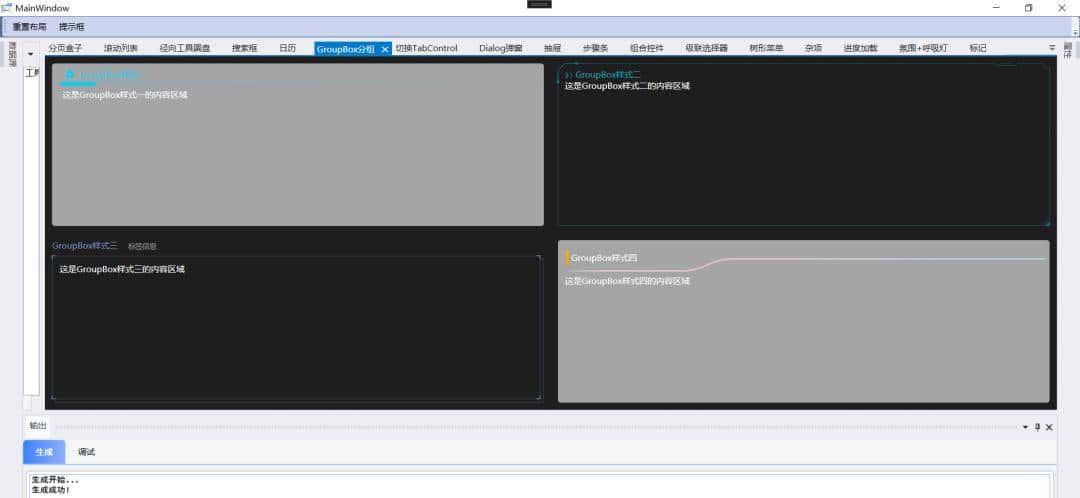
SwitchTabControl(可切换样式的标签页)、UTabControl(动态菜单 Tab)、GroupBox 多种美化样式;
2、输入与选择类
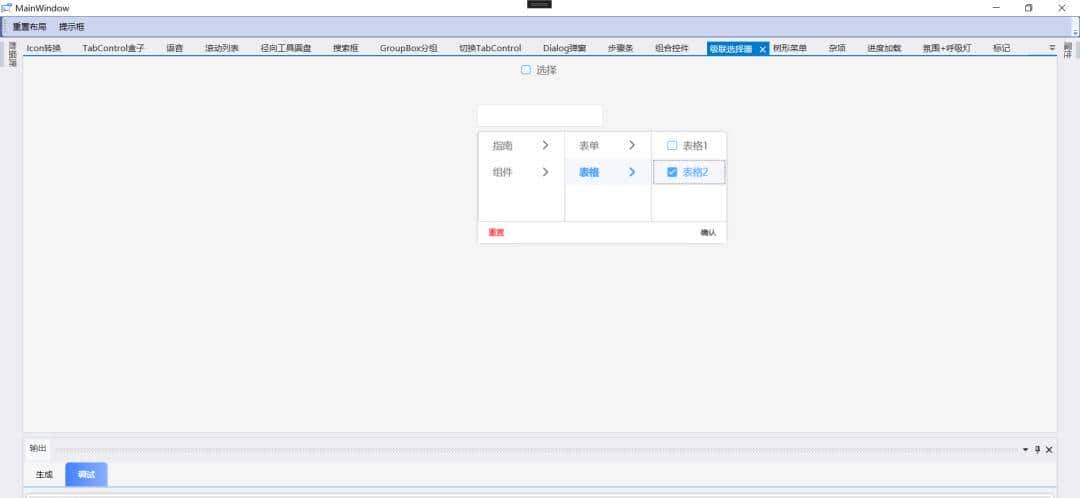
SearchTextBox(智能搜索框)、InputNumber(数字输入)、CascaderSelector(级联选择器)、CalendarView(日历控件);
3、反馈与状态类
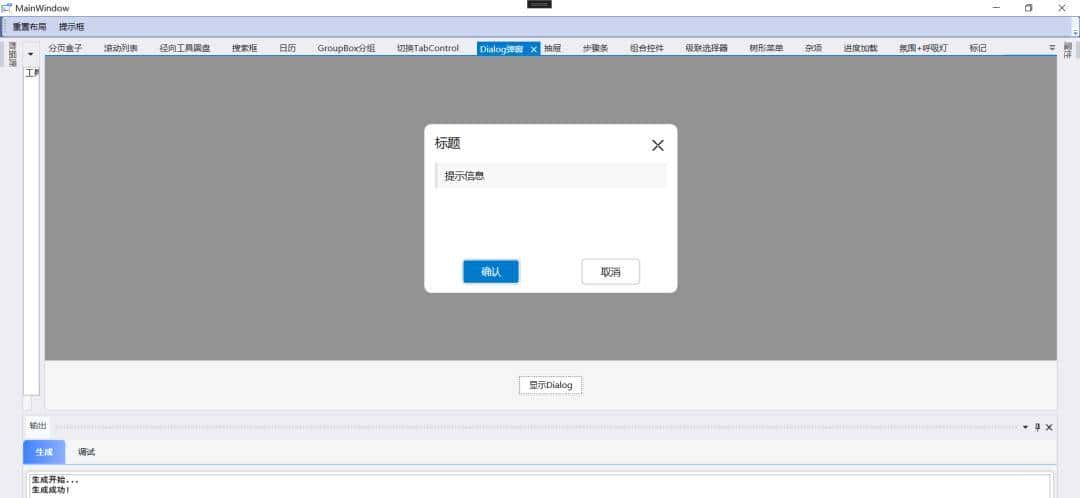
UDialog(模态弹窗)、UDrawer(抽屉侧边栏)、MessageHost(消息提示宿主)、Notify 提示框;
4、数据展示类
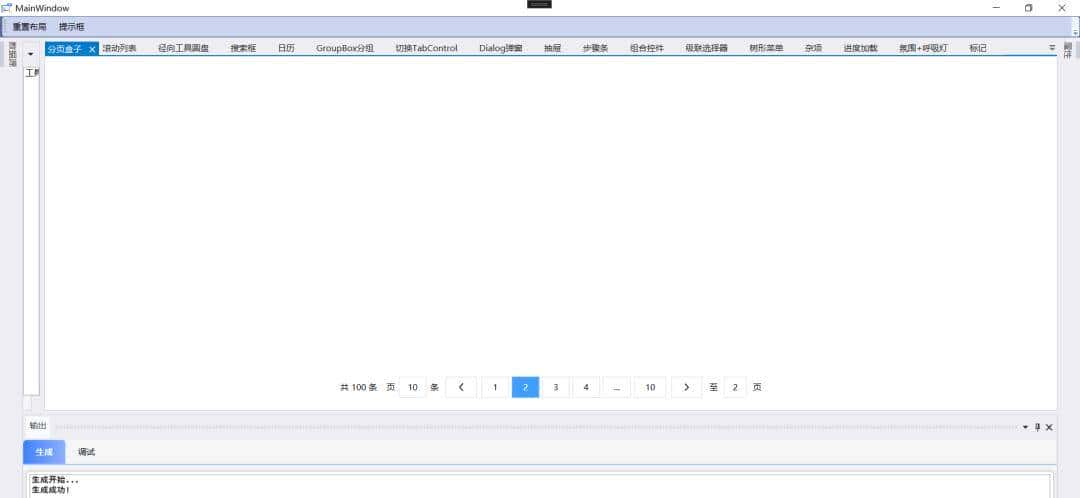
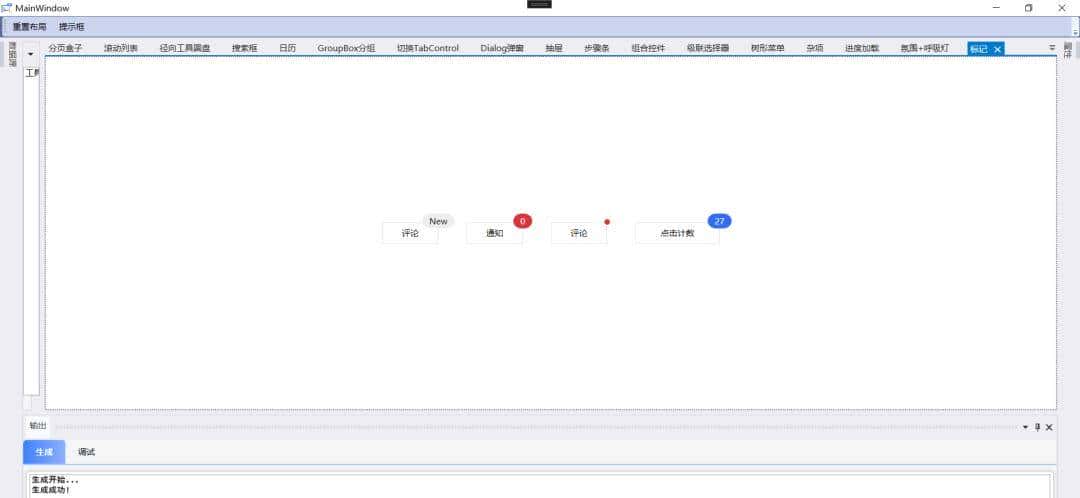
TimelineControl(时间线)、StepBar(步骤条)、Pagination(分页器)、Badge(徽标标记);
5、加载与进度类
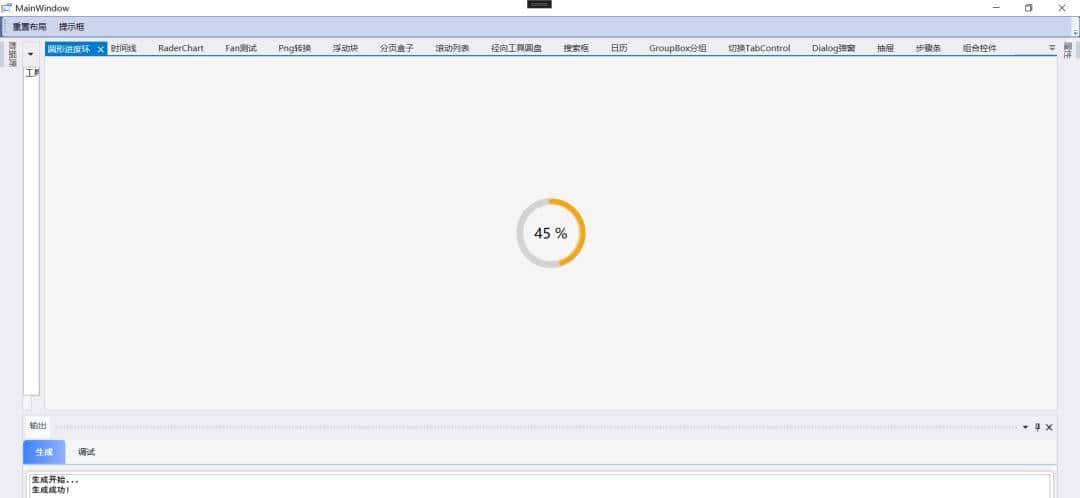
CircularProgressBar(环形进度条)、ProgressLoading、RingLoading、DotLoading 等多种加载动画;
6、特色交互控件
RadialToolbar(径向工具圆盘)、CompareSpliter(图片对比滑块)、FloatingBlock(浮动提示块)、BreathLamp(呼吸灯效果);
7、行业专用组件
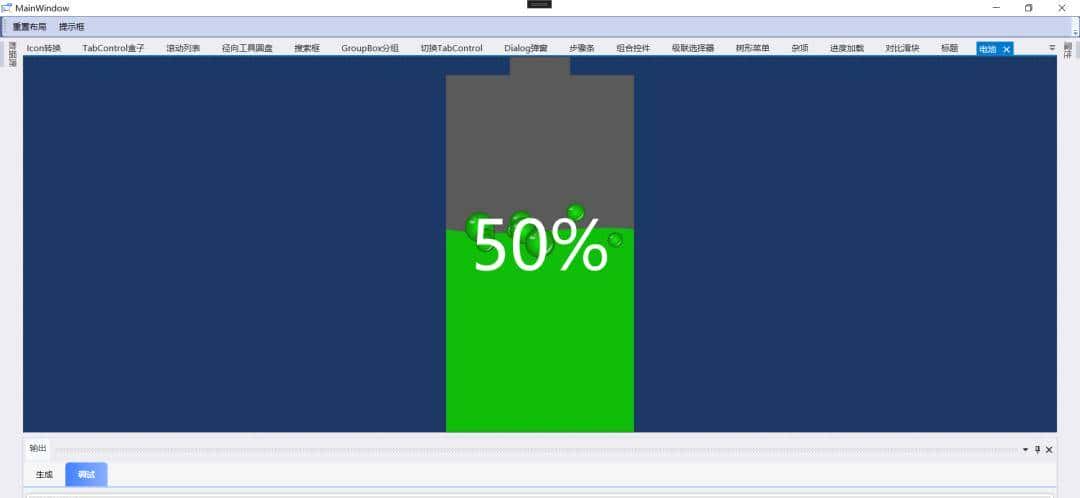
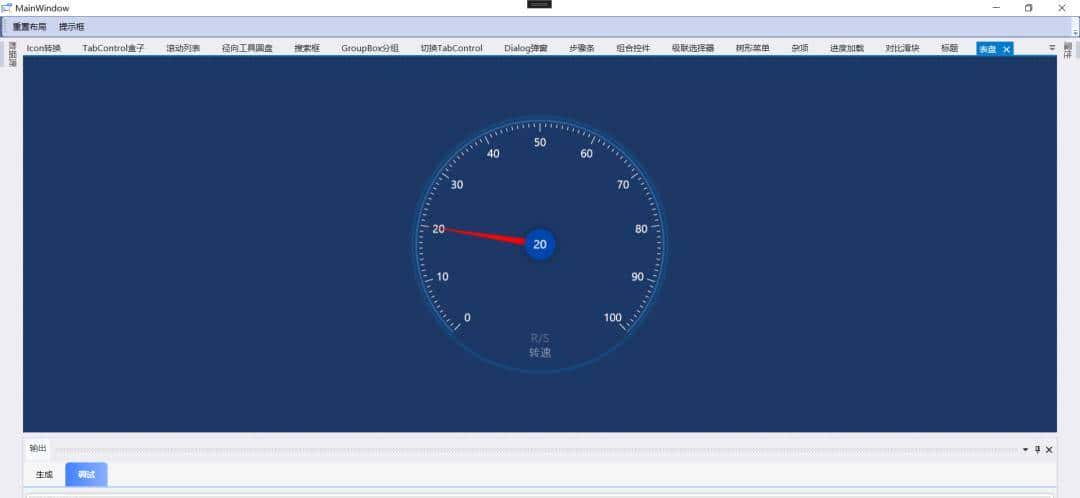
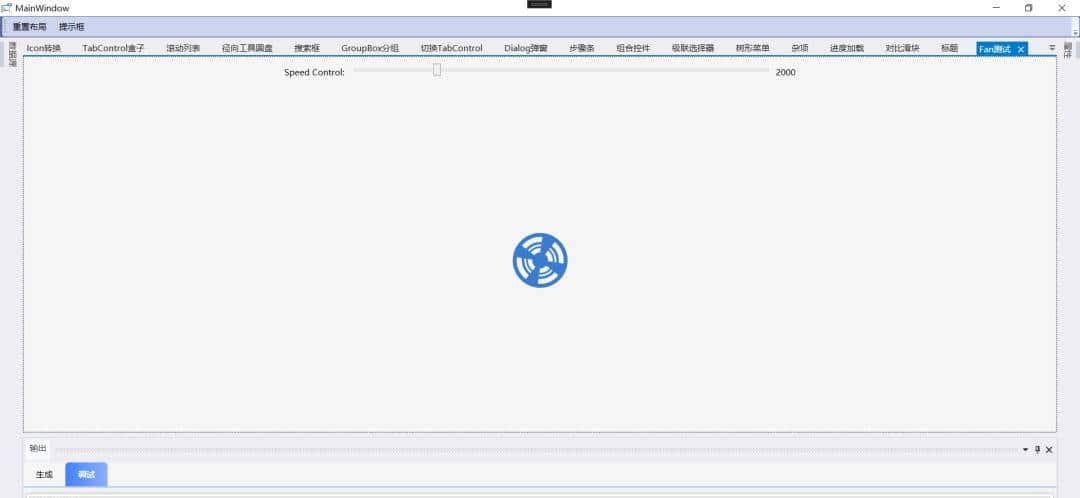
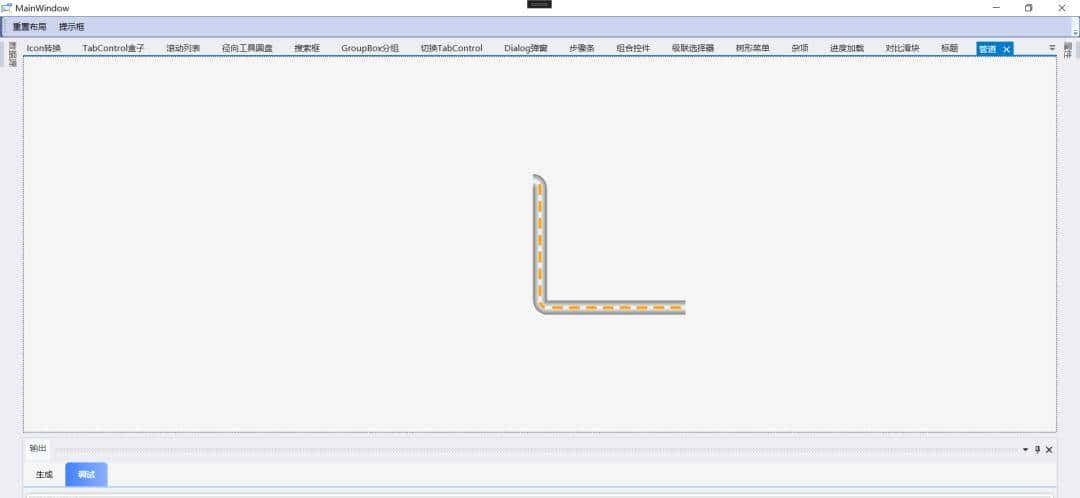
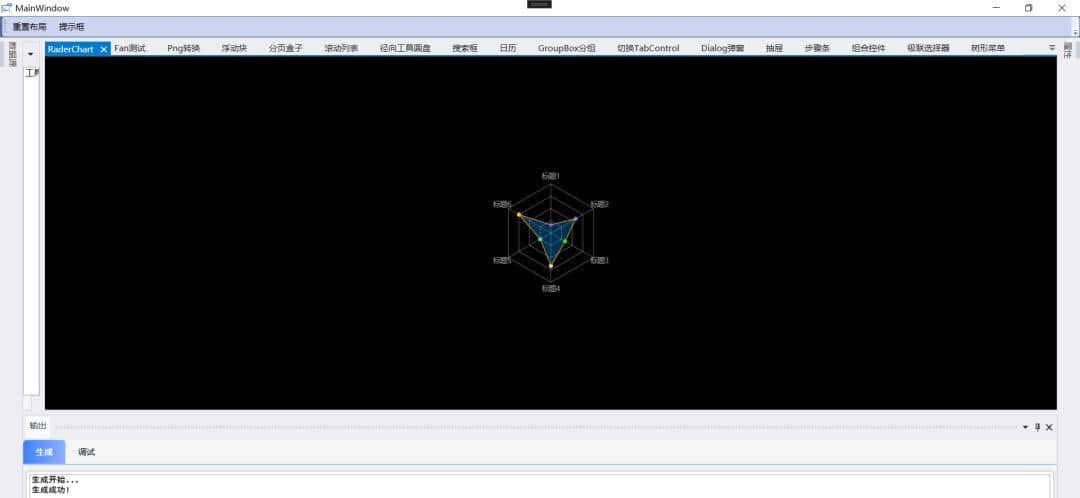
Meter(仪表盘)、BatteryControl(电池电量)、RaderChart(雷达图)、Fan(风扇动效)、Pipeline(管道流动)等可视化控件。
项目说明
控件并非简单堆砌,而是经过精心设计与统一风格打磨。
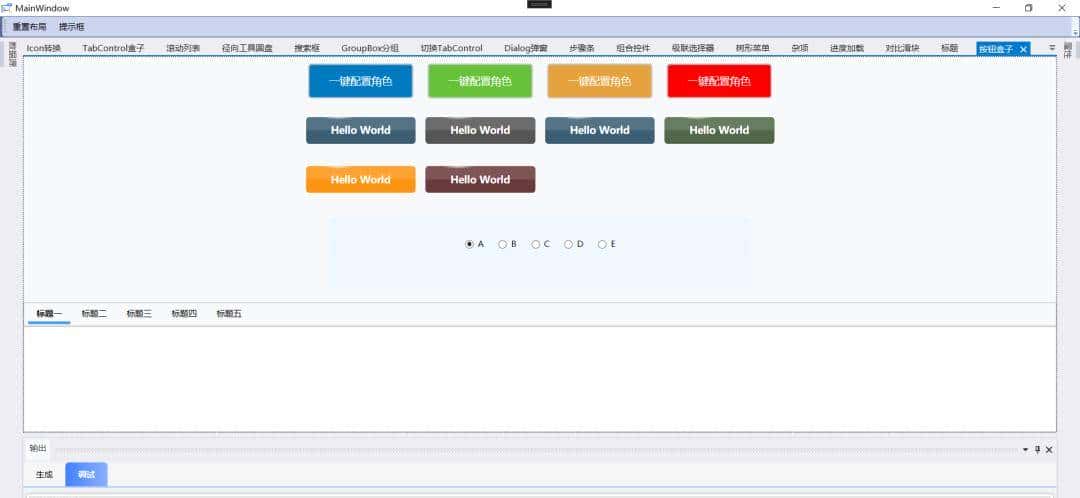
例如,所有按钮都支持 3D 风格、信息/成功/警告/错误等语义化样式;
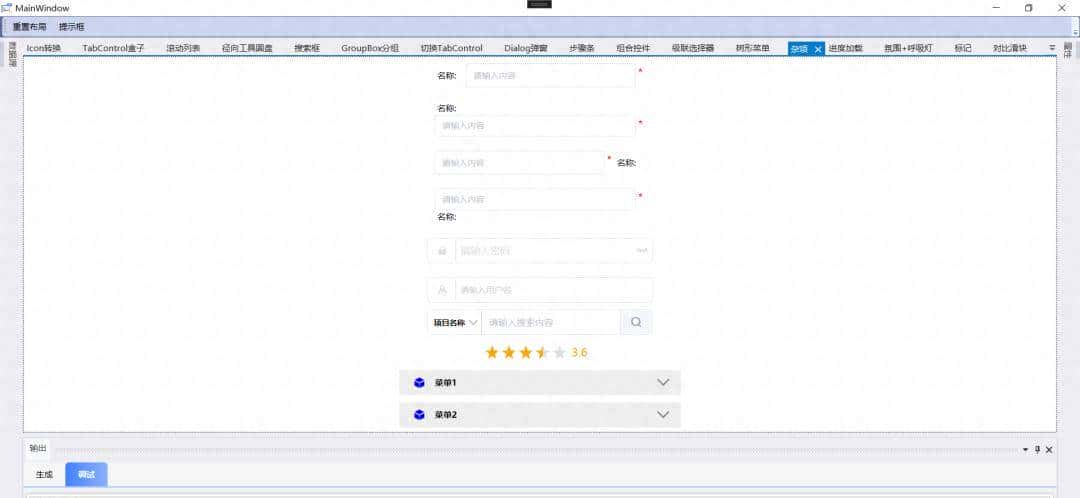
输入框通过附加属性(如 TitleAttachHelper)轻松实现带标签、占位符、必填标识的复合输入区域;
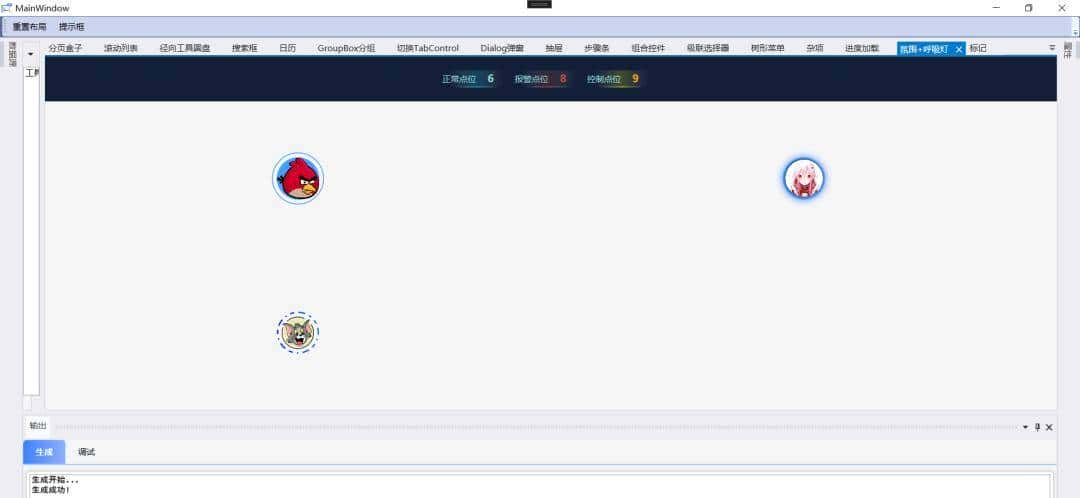
而像”氛围+呼吸灯”这类控件,则巧妙结合了动画与数据绑定,适用于监控、IoT 等场景。
项目技术
技术实现上,项目充分利用 WPF 的核心优势。
控件大量使用 DependencyProperty、ControlTemplate和Style进行解耦,支持通过 XAML 直接配置外观与行为。
同时,广泛采用 MVVM 模式,配合 RelativeSource绑定、自定义附加属性(如IconAttachHelper、PasswordAttachHelper)等技巧,极大提升开发效率和代码可维护性。
底层动画则依托 WPF 的 Storyboard和DoubleAnimation,流畅自然,资源占用低。
项目代码
管道绘制
private void DrawPipe(DrawingContext drawingContext, double Radius,double len1,double len2)
{
// 径向发散
RadialGradientBrush radBrush = new RadialGradientBrush;
radBrush.GradientOrigin = new Point(0.5, 0.5);
radBrush.GradientStops.Add(new GradientStop(Colors.Gray, 0));
radBrush.GradientStops.Add(new GradientStop(Colors.White, 0.5));
radBrush.GradientStops.Add(new GradientStop(Colors.Gray, 1));

// 线性发散
LinearGradientBrush linearBrush = new LinearGradientBrush;
linearBrush.GradientStops.Add(new GradientStop(Colors.Gray, 0));
linearBrush.GradientStops.Add(new GradientStop(Colors.White, 0.5));
linearBrush.GradientStops.Add(new GradientStop(Colors.Gray, 1));

// 路径图形
PathFigure pathFigure = new PathFigure;

if (Direction == "Horizontal")
{
linearBrush.StartPoint = new Point(0, 0);
linearBrush.EndPoint = new Point(0, 1);
// 两个端点都是水平的
if(string.IsNullOrEmpty(BeginDir) && string.IsNullOrEmpty(EndDir))
{
drawingContext.DrawRectangle(linearBrush, null, new Rect(0, 0, len1, Radius));

Point p0 = new Point(0, Radius / 2);
Point p1 = new Point(len1, Radius / 2);
pathFigure.StartPoint = p0;
LineSegment lineSegment = new LineSegment(p1, true);
pathFigure.Segments.Add(lineSegment);
}
// 起点水平,结束端点带方向
elseif (string.IsNullOrEmpty(BeginDir))
{
}
// 起点带方向,结束端点水平
elseif (string.IsNullOrEmpty(EndDir))
{
}
else
{
// 蚂蚁线坐标点
Point p0;
Point p1;
Point p2;
Point p3;
Point p4;
Point p5;

// 绘制一区弧形
if (BeginDir == "Top")
{
EllipseGeometry eGeometry = new EllipseGeometry(new Point(Radius, 0), Radius, Radius);
RectangleGeometry rGeometry = new RectangleGeometry(new Rect(x: 0, 0, Radius, Radius));
CombinedGeometry comb = new CombinedGeometry(eGeometry, rGeometry);
comb.GeometryCombineMode = GeometryCombineMode.Intersect;

drawingContext.PushClip(comb);
drawingContext.DrawEllipse(radBrush, null, new Point(Radius, 0), Radius, Radius);
drawingContext.Pop;

p0 = new Point(Radius / 2, 0);
p1 = new Point(Radius / 2, Radius / 2);
p2 = new Point(Radius, Radius / 2);
}
else
{
}

// 绘制中间矩形
drawingContext.DrawRectangle(linearBrush, null, new Rect(Radius - 1, 0, len1 - 2 * Radius + 2, len2));

// 绘制二区弧形
if (EndDir == "Top")
{
}
else
{
EllipseGeometry eGeometry2 = new EllipseGeometry(new Point(len1 - Radius, Radius), Radius, Radius);
RectangleGeometry rGeometry2 = new RectangleGeometry(new Rect(len1 - Radius, 0, Radius, Radius));
CombinedGeometry comb2 = new CombinedGeometry(eGeometry2, rGeometry2);
comb2.GeometryCombineMode = GeometryCombineMode.Intersect;

drawingContext.PushClip(comb2);
drawingContext.DrawEllipse(radBrush, null, new Point(len1 - Radius, Radius), Radius, Radius);
drawingContext.Pop;

// 蚂蚁线坐标点
p3 = new Point(len1 - Radius, Radius / 2);
p4 = new Point(len1 - Radius / 2, Radius / 2);
p5 = new Point(len1 - Radius / 2, Radius);
}

pathFigure.StartPoint = p0;
BezierSegment bezier1 = new BezierSegment(p0, p1, p2, true);
LineSegment line = new LineSegment(p3, true);
BezierSegment bezier2 = new BezierSegment(p3, p4, p5, true);

pathFigure.Segments.Add(bezier1);
pathFigure.Segments.Add(line);
pathFigure.Segments.Add(bezier2);
}

}
else// 垂直方向
{
linearBrush.StartPoint = new Point(0, 0);
linearBrush.EndPoint = new Point(1, 0);
// 两个端点都是垂直的
if (string.IsNullOrEmpty(BeginDir) && string.IsNullOrEmpty(EndDir))
{
drawingContext.DrawRectangle(linearBrush, null, new Rect(0, 0,len2, len1));

Point p0 = new Point(Radius / 2, 0);
Point p1 = new Point(Radius / 2, len1);
pathFigure.StartPoint = p0;
LineSegment lineSegment = new LineSegment(p1, true);
pathFigure.Segments.Add(lineSegment);
}
// 起点垂直,结束端点带方向
elseif (string.IsNullOrEmpty(BeginDir))
{
Point p0;
Point p1;
Point p2;
Point p3;
// 绘制二区弧形
if (EndDir == "Left")
{
EllipseGeometry eGeometry2 = new EllipseGeometry(new Point(0, len1 - Radius), Radius, Radius);
RectangleGeometry rGeometry2 = new RectangleGeometry(new Rect(0, len1 - Radius, Radius, Radius));
CombinedGeometry comb2 = new CombinedGeometry(eGeometry2, rGeometry2);
comb2.GeometryCombineMode = GeometryCombineMode.Intersect;

drawingContext.PushClip(comb2);
drawingContext.DrawEllipse(radBrush, null, new Point(0, len1 - Radius), Radius, Radius);
drawingContext.Pop;

// 蚂蚁线坐标点
p0 = new Point(Radius / 2, 0);
p1 = new Point(Radius / 2, len1 - Radius);
p2 = new Point(Radius / 2, len1 - Radius / 2);
p3 = new Point(Radius, len1 - Radius / 2);

pathFigure.StartPoint = p0;
LineSegment line = new LineSegment(p1, true);
BezierSegment bezier = new BezierSegment(p1, p2, p3, true);

pathFigure.Segments.Add(line);
pathFigure.Segments.Add(bezier);
}
else
{
EllipseGeometry eGeometry2 = new EllipseGeometry(new Point(Radius, len1 - Radius), Radius, Radius);
RectangleGeometry rGeometry2 = new RectangleGeometry(new Rect(0, len1 - Radius, Radius, Radius));
CombinedGeometry comb2 = new CombinedGeometry(eGeometry2, rGeometry2);
comb2.GeometryCombineMode = GeometryCombineMode.Intersect;

drawingContext.PushClip(comb2);
drawingContext.DrawEllipse(radBrush, null, new Point(Radius, len1 - Radius), Radius, Radius);
drawingContext.Pop;

// 蚂蚁线坐标点
p0 = new Point(Radius / 2, 0);
p1 = new Point(Radius / 2, len1 - Radius);
p2 = new Point(Radius / 2, len1 - Radius / 2);
p3 = new Point(0, len1 - Radius / 2);

pathFigure.StartPoint = p0;
LineSegment line = new LineSegment(p1, true);
BezierSegment bezier = new BezierSegment(p1, p2, p3, true);

pathFigure.Segments.Add(line);
pathFigure.Segments.Add(bezier);
}
}
// 起点带方向,结束端点垂直
elseif (string.IsNullOrEmpty(EndDir))
{
}
else
{
// 蚂蚁线坐标点
Point p0;
Point p1;
Point p2;
Point p3;
Point p4;
Point p5;
// 绘制一区弧形
if (BeginDir == "Left")
{
}
else
{

}
// 绘制中间矩形
drawingContext.DrawRectangle(linearBrush, null, new Rect(0, Radius, Radius, len1 - 2 * Radius));

// 绘制二区弧形
pathFigure.StartPoint = p0;
BezierSegment bezier1 = new BezierSegment(p0, p1, p2, true);
LineSegment line = new LineSegment(p3, true);
BezierSegment bezier2 = new BezierSegment(p3, p4, p5, true);

pathFigure.Segments.Add(bezier1);
pathFigure.Segments.Add(line);
pathFigure.Segments.Add(bezier2);
}
}

PathGeometry pathGeometry = new PathGeometry;
pathGeometry.Figures.Add(pathFigure);

Pen pen = new Pen;
pen.Brush = new SolidColorBrush(Colors.Orange);
pen.Thickness = 4;
DashStyle style = new DashStyle;
style.Dashes.Add(3);
style.Dashes.Add(3);
style.Offset = 0;
pen.DashStyle = style;
pen.DashCap = PenLineCap.Round;

DoubleAnimation animation = new DoubleAnimation;
animation.Duration = new Duration(TimeSpan.FromSeconds(0.4));
animation.RepeatBehavior = RepeatBehavior.Forever;
animation.From = FlowDir == FlowDirections.FORWARD ? 0 : -6;
animation.To = FlowDir == FlowDirections.FORWARD ? -6 : 0;
if(Flow)
style.BeginAnimation(DashStyle.OffsetProperty, animation);

drawingContext.DrawGeometry(null, pen, pathGeometry);
}
项目效果
界面色彩协调(主色调为深蓝灰),控件响应灵敏,动效细腻。无论是复杂的多文档界面(基于 AvalonDock 实现的可拖拽布局),还是实时更新的仪表盘、滚动列表,都能保持流畅体验。
常用控件
按钮
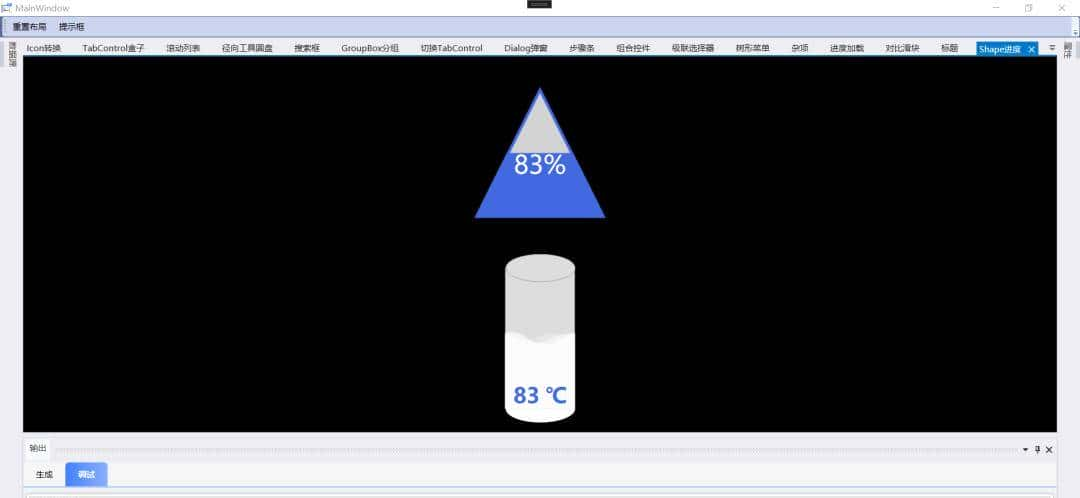
Shape进度
电池
表盘
电风扇
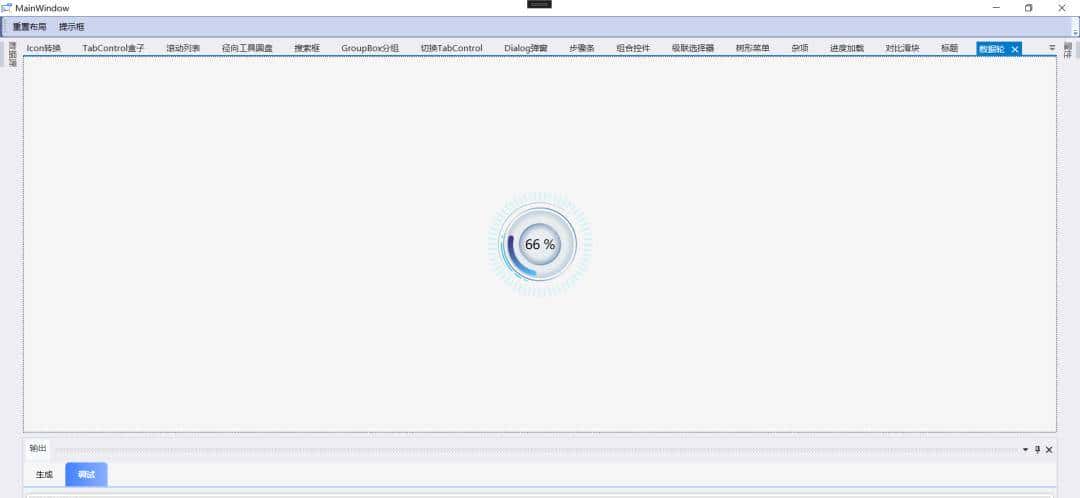
数据轮
管道
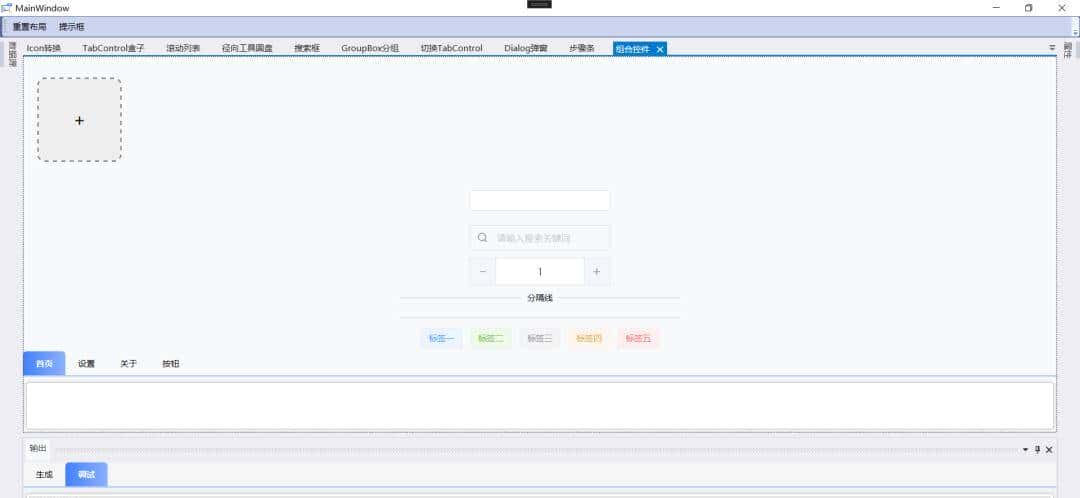
组合控件
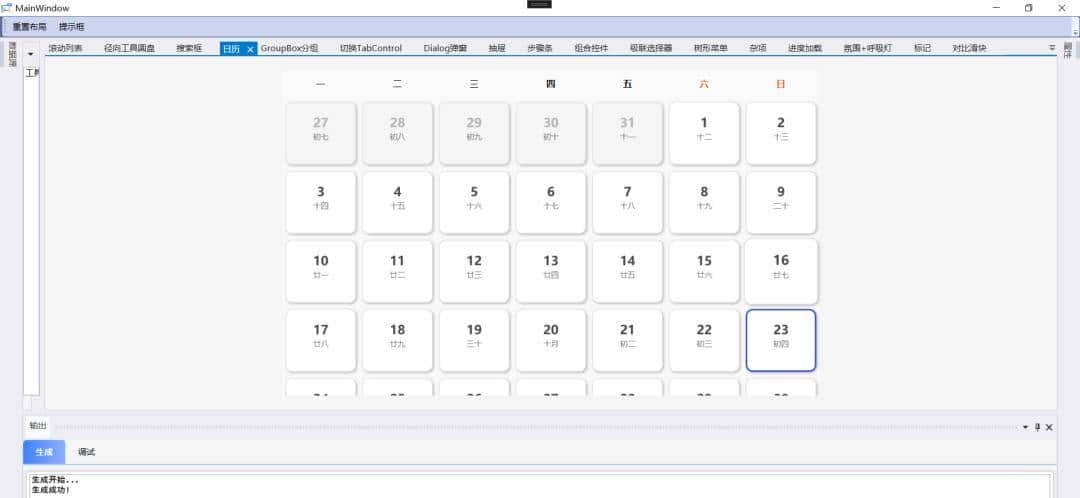
日历
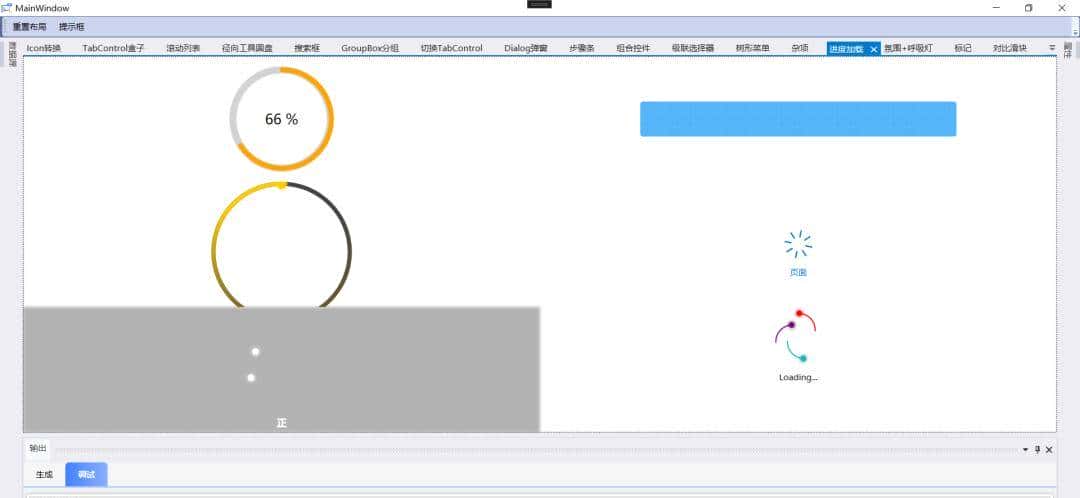
进度条
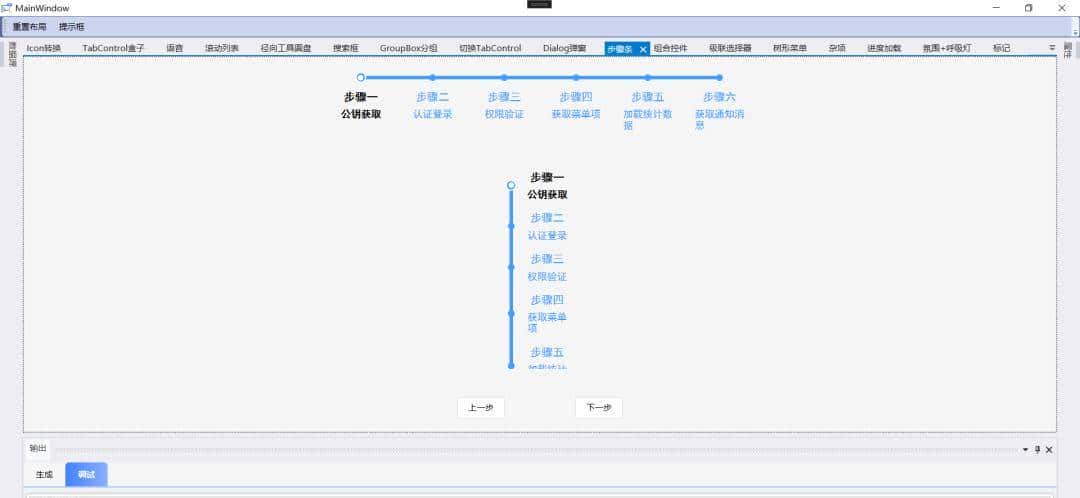
步骤条
级联选择器
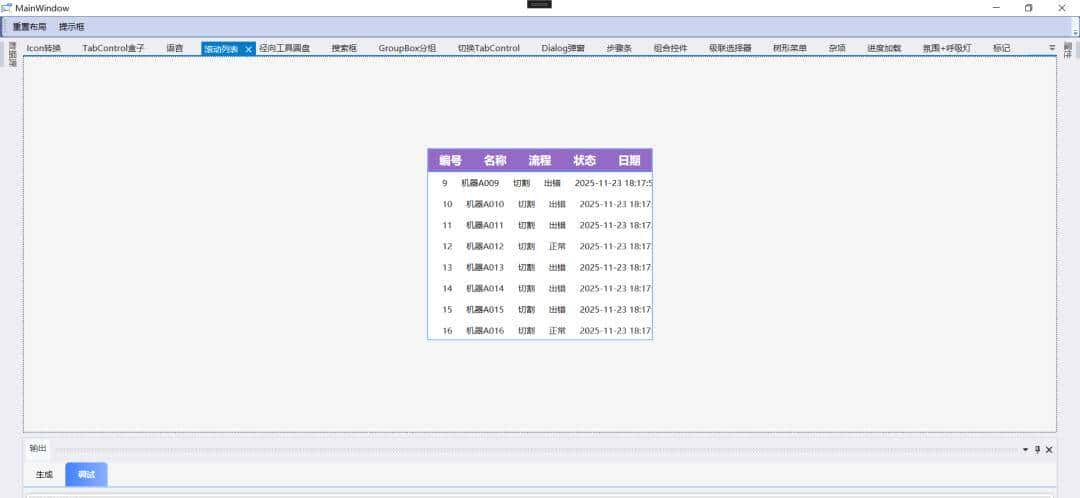
滚动列表
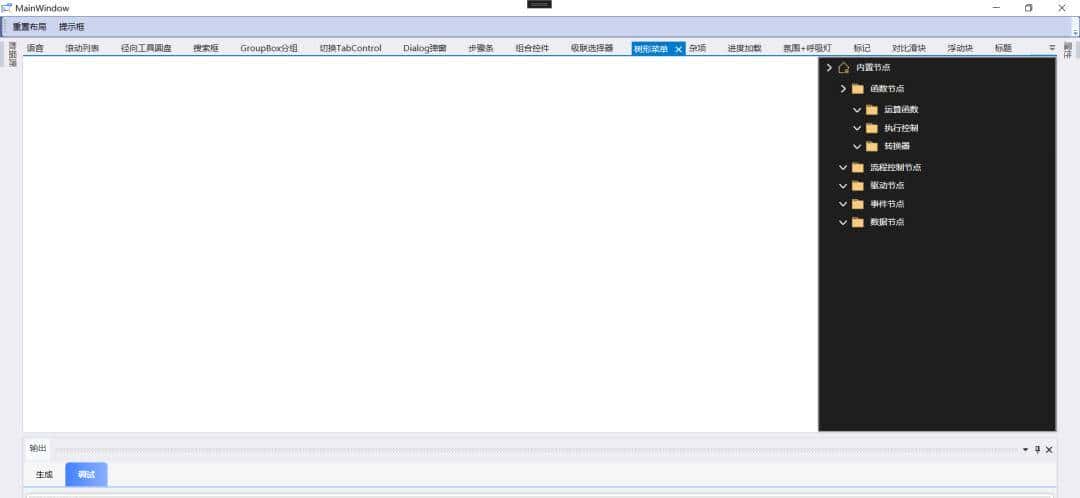
树形结构
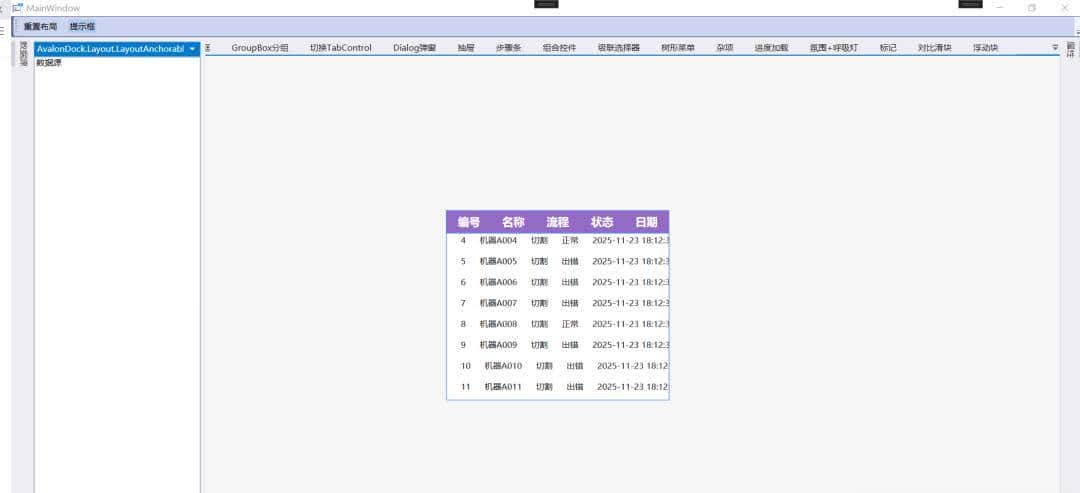
提示框
呼吸灯
分组
弹窗
分页
标记
圆形进度条
统计分析
项目源码
项目源码托管于 Gitee,结构清晰,注释详实,完整展示了各控件的使用方式。
为了防止丢失,后台回复关键字「WPF工业控件」,即可获取完整源码地址。

总结
总的来说,控件库填补了 WPF 生态在现代化 UI 组件上的空白。它不像某些重型框架那样臃肿,也不像零散控件那样风格割裂,而是在”实用”与”美观”之间找到了很好的平衡点。
在这个 Web 技术大行其道的时代,WPF 依然在特定领域不可替代。WPF控件库也为.NET 桌面应用,同样可以做得既强劲又好看。
关键词
、、、、、、、、、、、
最后
如果你觉得这篇文章对你有协助,不妨点个赞支持一下!你的支持是我继续分享知识的动力。如果有任何疑问或需要进一步的协助,欢迎随时留言。也可以加入微信公众号[DotNet技术匠]社区,与其他热爱技术的同行一起交流心得,共同成长!
作者:小码编匠
出处:
gitee.com/smallcore/DotNetCore
声明:网络内容,仅供学习,尊重版权,侵权速删,歉意致谢!
END
推荐阅读
觉得有收获?不妨分享让更多人受益
关注「DotNet技术匠」,共同提升技术实力

收藏


分享

在看













- 最新
- 最热
只看作者