

前端UI框架ElementUl目前已经被广泛使用,其入门轻松、语法简洁、功能强悍,可以协助我们快速完成网站开发,因此也深受开发者的喜爱。
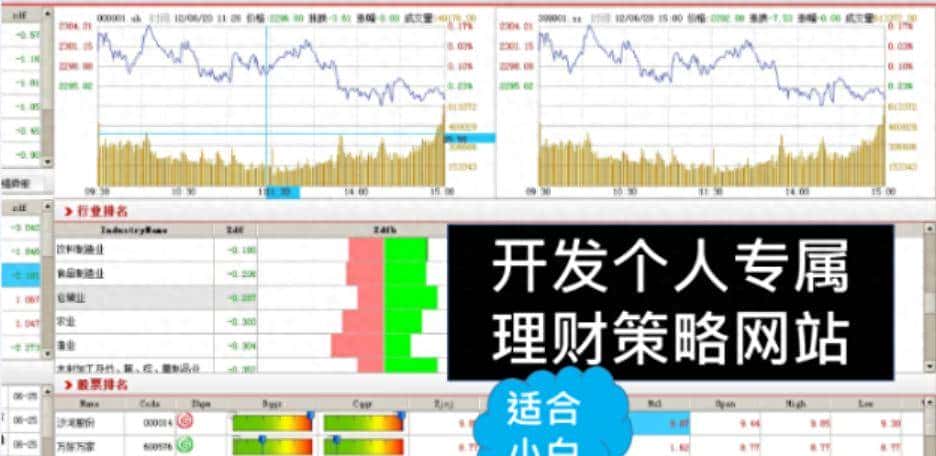
今天就分享一下,如何利用 vue +ElementUI 分享一下如何来实现个人网站的开发,欢迎大家讨论和交流。


1. 利用 vue+webpack 创建项目
具体项目创建方法可以参考 sumBlog
本次开发使用 vs code + node +element-ui,因此需要事先完成软件下载和安装:
vs code : https://code.visualstudio.com/
node: https://nodejs.org/en/download/
element-ui : npm i element-ui -S
2. 网页结构设计
整体布局 采用 顶栏 + 侧栏 混搭的方式搭建:
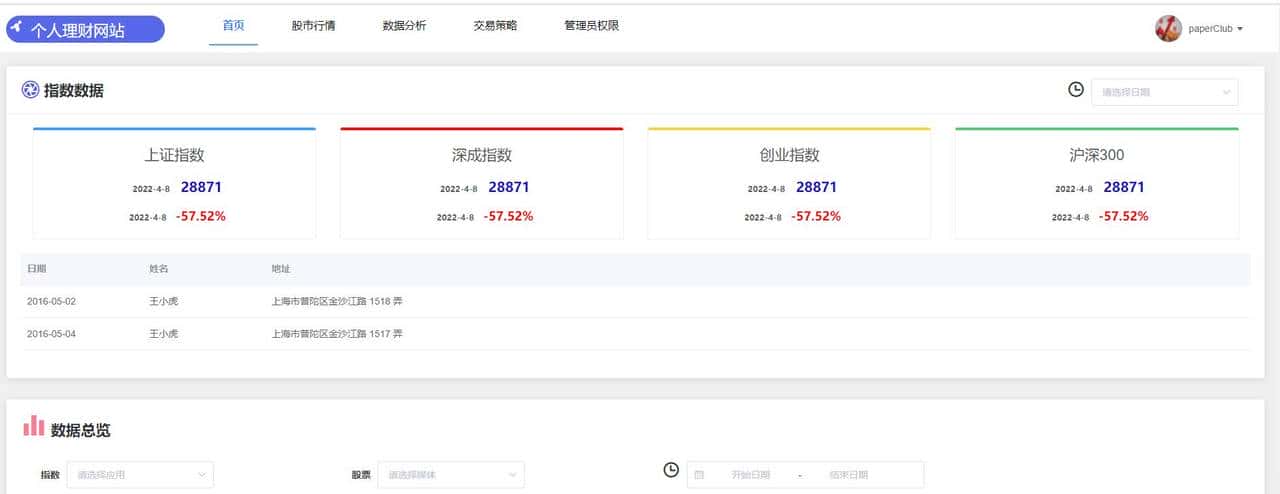

先看一下目前的页面主题效果:
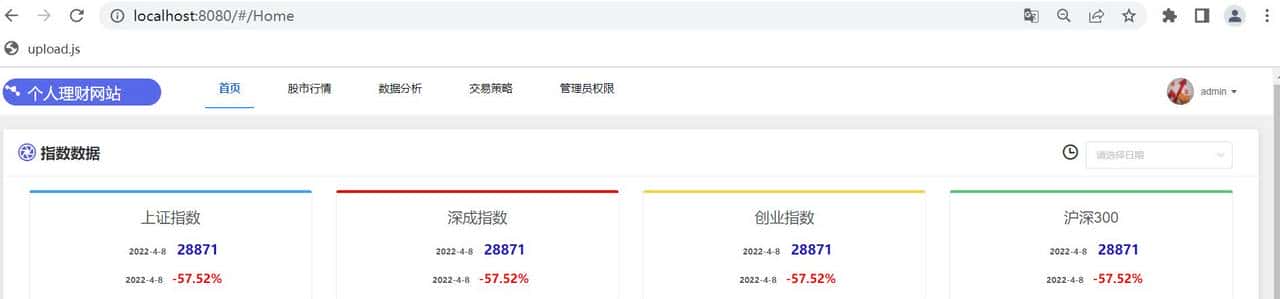
网站首页-指数数据
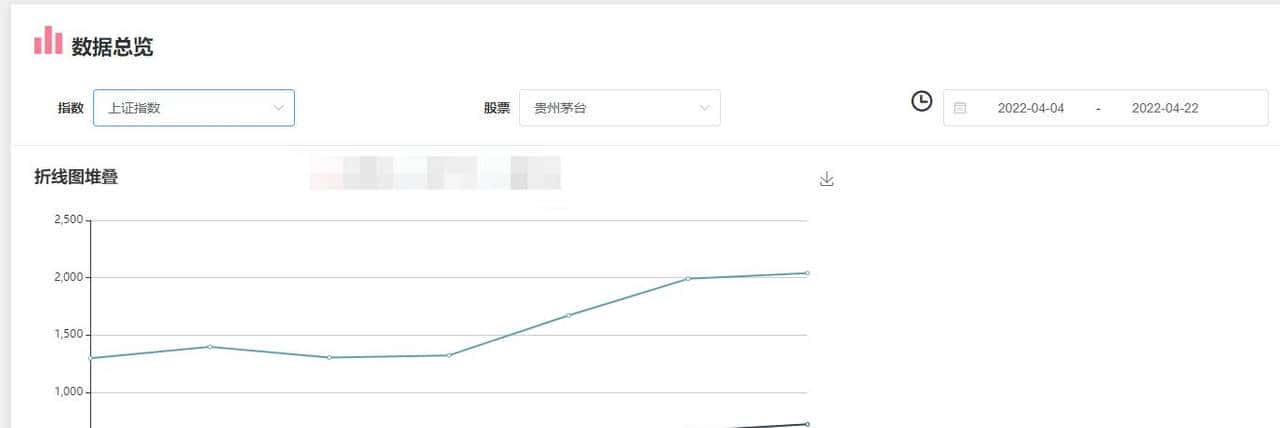
网站首页-数据总览

网站导航栏

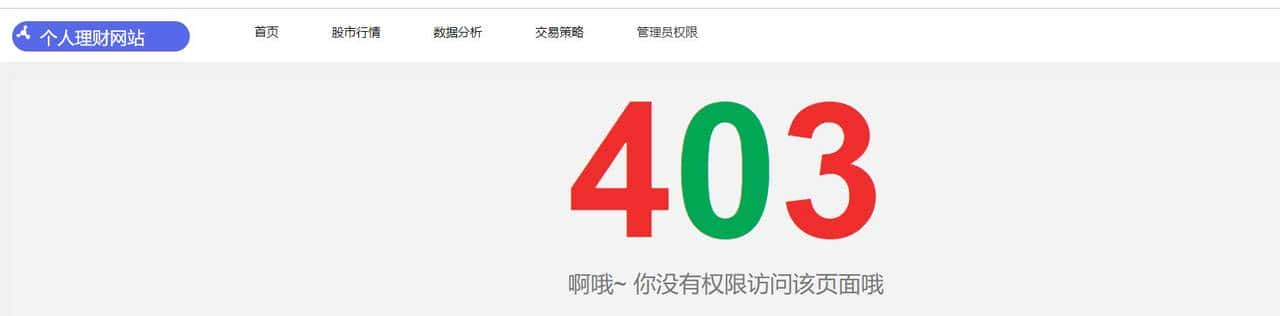
网址登录控制台
项目启动: npm run dev, 本地网址:http://localhost:8080
2.1 导航栏设计:
大家也可以按照自己喜爱的进行设计, 如elementui 官方例子:
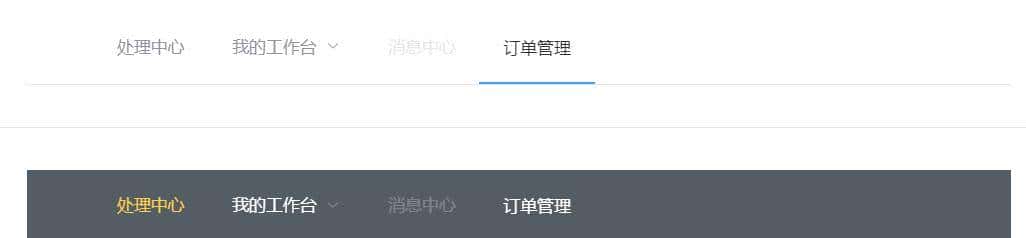
***在建好的项目
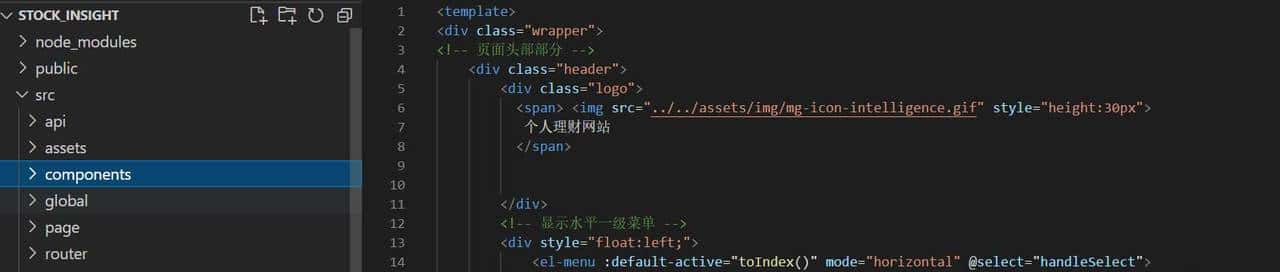
staock_insight/components/ 创建公用组件, 包括 common, dashboard, sidemenu,
这里分享一个小技巧, 可以使用 Project Tree
│  ├─ components
│  │  ├─ common
│  │  │  ├─ Grid.vue
│  │  │  ├─ i18n.js
│  │  │  ├─ I18n.vue
│  │  │  ├─ Table.vue
│  │  │  └─ Whole.vue
│  │  ├─ dashboard
│  │  │  └─ LineECharts.vue
│  │  └─ sidemenu
│  │     └─ SideMenu.vue
页面详情部分放到 staock_insight/page/, 具体结构:
2.2 代码解析:
Whole.vue 是用来实现网站整体导航栏部分的页面结构布局,通过 div 分区 + ElelemetUI el-menu 组件实现, 仿照 el-menu:
<el-menu :default-active="activeIndex" class="el-menu-demo" mode="horizontal" @select="handleSelect">
  <el-menu-item index="1">处理中心</el-menu-item>
  <el-submenu index="2">
    <template slot="title">我的工作台</template>
    <el-menu-item index="2-1">选项1</el-menu-item>
    <el-menu-item index="2-2">选项2</el-menu-item>
    <el-menu-item index="2-3">选项3</el-menu-item>
    <el-submenu index="2-4">
      <template slot="title">选项4</template>
      <el-menu-item index="2-4-1">选项1</el-menu-item>
      <el-menu-item index="2-4-2">选项2</el-menu-item>
      <el-menu-item index="2-4-3">选项3</el-menu-item>
    </el-submenu>
  </el-submenu>
  <el-menu-item index="3" disabled>消息中心</el-menu-item>
  <el-menu-item index="4"><a href="https://www.ele.me" target="_blank">订单管理</a></el-menu-item>
</el-menu>
修改后完整代码:
<template>
<div class="wrapper">
<!-- 页面头部部分 -->
    <div class="header">
        <div class="logo">
          <span> <img src="../../assets/img/mg-icon-intelligence.gif" style="height:30px">
           个人理财网站
          </span>
        </div>
        <!-- 显示水平一级菜单:通过handleSelect 方法实现导航转跳 -->
        <div style="float:left;">
            <el-menu :default-active="toIndex()" mode="horizontal" @select="handleSelect">
                <!-- 遍历对象items 展示导航名称  -->
            <template v-for="item in items">
                <el-menu-item :index="item.index" :key="item.index">
                <template slot="title">
                    <span slot="title">{{ item.title }}</span>
                </template>
                </el-menu-item>
            </template>
            </el-menu>
        </div>

        <div class="header-right">
            <div class="header-user-con">
                <!-- 用户头像 -->
                <div class="user-avator"><img src="../../assets/img/stock.jpg" /></div>
                <!-- 用户名下拉菜单 -->
                <el-dropdown class="user-name" trigger="click" @command="handleCommand">
                    <span class="el-dropdown-link">
                        {{ username }}
                        <i class="el-icon-caret-bottom"></i>
                    </span>
                    <el-dropdown-menu slot="dropdown">
                        <el-dropdown-item disabled>修改密码</el-dropdown-item>
                        <el-dropdown-item command="loginout">退出登录</el-dropdown-item>
                    </el-dropdown-menu>
                </el-dropdown>
            </div>
        </div>
    </div>

    <!-- 页面左侧二级菜单栏,和主体内容区域部分 -->
    <el-main>
        <router-view></router-view>
    </el-main>

</div>
</template>

<script>
export default {
    data() {
        return {
            items: [    // 水平一级菜单栏的菜单
                { index: 'Home', title: '首页' },
                { index: 'channel1', title: '股市行情' },
                { index: 'channel2', title: '数据分析' },
                { index: 'channel3', title: '交易策略' },
                { index: 'permission', title: '管理员权限' },
            ]
        }
    },
    computed: {
        username() {
            let username = localStorage.getItem('ms_username');
            return username ? username : this.name;
        }
    },
    methods:{
        // 根据路径绑定到对应的一级菜单,防止页面刷新重新跳回第一个
        toIndex() {
            return this.$route.path.split('/')[1];
        },
        // 切换菜单栏
        handleSelect(index) {
            this.$router.push('/' + index);
        },
        // 用户名下拉菜单选择事件
        handleCommand(command) {
            if (command == 'loginout') {
                localStorage.removeItem('ms_username');
                this.$router.push('/login');
            }
        }
    }
}
</script>

<style scoped>
.wrapper {
    width: 100%;
    height: 100%;
    background: #f0f0f0;
}
.header {
    position: relative;
    box-sizing: border-box;
    width: 100%;
    height: 70px;
    font-size: 22px;
}
.header .logo {
    float: left;
    margin-left: 20px;
    margin-top: 16px;
    height: 40px;
    width: 234px;
    vertical-align: middle;

    font-size: 23px;
    border-radius: 20px;
    color: rgb(255, 255, 255);
    background-color: rgb(87, 104, 234);
    /* padding: 0px 4px 2px 5p; */
}

head .logo .img {  /* 个人理财 gif 图标 */
    width: 20px;
    display: inline-block;
    vertical-align: middle;    /* 让该图标在 Y 轴上居中 */
}
/* --------------- 用户头像区域的样式 ---------------- */
.header-right {
    float: right;
    padding-right: 50px;
}
.header-user-con {
    display: flex;
    height: 70px;
    align-items: center;
}
.user-avator {
    margin-left: 20px;
}
.user-avator img {
    display: block;
    width: 40px;
    height: 40px;
    border-radius: 50%;
}
.user-name {
    margin-left: 10px;
}
.el-dropdown-link {/* 添加shoushi*/
    cursor: pointer;
}
.el-dropdown-menu__item {
    text-align: center;
}
/* --------------- 水平一级菜单栏的样式--------------------- */
.el-menu.el-menu--horizontal {
    border-bottom: none !important;
    float: left;
    margin-left: 50px;
}
.el-menu--horizontal > .el-menu-item.is-active {
    border-bottom: 2px solid #409eff;
    color: #0b69ec;
    font-weight: 700;
}
.el-menu--horizontal > .el-menu-item {
    font-size: 16px;
    margin: 0 15px;
    color: black;
}
</style>
SideMenu.vue 主要是用来处理 左侧导航栏的:
<template>
    <div class="sidebar">
    <!-- 左侧二级菜单栏的组件封装 -->
        <el-menu
            class="sidebar-el-menu"
            :default-active="toIndex()"
            background-color="white"
            text-color="#7a8297"
            active-text-color="#2d8cf0"
            router>
            <template v-for="item in items">
                <el-menu-item :index="item.index" :key="item.index">
                    <!-- icon修改在 item 对象 -->
                    <i :class="item.icon"></i>
                    <span slot="title">{{ item.title }}</span>
                </el-menu-item>
            </template>
        </el-menu>
    </div>
</template>

<script>
export default {
    props: ['items'],
    data() {
        return {

        }
    },
    methods:{
        // 根据路径绑定到对应的二级菜单,防止页面刷新重新跳回第一个
        toIndex(){
            return this.$route.path.split('/')[2];
        },
    },
};
</script>

<style scoped>
/* 左侧菜单栏定位和位置大小设定 */
.sidebar {
    display: block;
    position: absolute;
    left: 0;
    top: 70px;
    bottom: 0;
    overflow-y: scroll;
}
.sidebar::-webkit-scrollbar {
    width: 0;
}
.sidebar-el-menu {
    width: 250px;
}
.sidebar > ul {
    height: 100%;
}

/* 左侧二级菜单项的样式 */
.el-menu-item{
    font-size: 14px !important;
    padding-left: 35px !important;
    color: black !important;
}

/* 左侧二级菜单选中时的样式 */
.el-menu-item.is-active {
    color: white !important;
    background: #3989fa!important;
}
.el-menu-item, .el-submenu__title {
    height: 50px !important;
    line-height: 50px !important;
}
</style>
page/ 个详情页面, 分别放在各个二级导航栏的详情页面, 主要是通过改变路径@select=”handleSelect”和对路由来实现跳转,组件之间的传值通信把二级菜单项传给左侧二级菜单栏的组件
index.vue:
<template>
<div>

    <!-- 一级菜单下面所拥有的二级菜单 -->
    <el-aside>
         <SideMenu :items='items'></SideMenu>
    </el-aside>

    <!-- 以及二级菜单所对应的页面 -->
    <el-main>
        <router-view></router-view>
    </el-main>

</div>
</template>

<script>
import SideMenu from '@/components/sidemenu/SideMenu';
export default {
    components:{
        SideMenu
    },
    data(){
        return {
            items: [
            {
                index: 'channel1-1',
                title: '关注指数',
                icon: 'el-icon-star-off'
            },
            {
                index: 'channel1-2',
                title: '股票基金',
                icon: 'el-icon-data-line'
            },
            {
                index: 'channel1-3',
                title: '其他数据',
                icon: 'el-icon-menu'
            },

        ],
        }
    }
}
</script>

<style scoped>
</style>
参考:
- https://element.eleme.cn/#/zh-CN/component/installation
- https://blog.csdn.net/weixin_41856395/article/details/110441057
- http://www.infersite.com/#/article/detail/6244f43b38015d15b85ce08c?pageindex=1&pagesize=8
实际上主要是网站的 页面结构的核心部分, 小伙伴们是不是觉得很简单呢?,如大家如需要源码,欢迎联系: sum 或 www.infersite.com











- 最新
- 最热
只看作者