
每天在网上找资料、看论文、做笔记的人必定懂:PDF,真的是又爱又恨。它排版好、跨平台,怎么发都不会乱套,可一旦想把里面的内容转出来,大多数情况下都得靠天吃饭。尤其是那些 ArXiv 下载的论文、扫码上传的合同、老师扫描成图片的讲义,遇上多栏排版、各种公式、图表,还有模糊、歪歪扭扭的手写体,真的让传统 OCR 工具“头皮发麻”。要么识别出来一堆乱码,要么表格都混到一块儿了,页眉页脚还和正文黏一起。信息提取这事儿,不但效率低,连准确度都靠不住。你说,科研人员和企业批量搞数据、做训练集,还能怎么整?
往往这时候,许多人会去找市面上的高端 OCR 软件。可一算价格,动辄几百、上千一年,开源免费的又往往功能不全,支持有限。更别提什么识别旧扫描件、搞定公式布局之类的“高难度动作”,几乎没人能全都兼顾。连 AI 圈里,许多建大模型库的团队都在找强力的 PDF 解读工具,却不是谁都能搞定这一环。
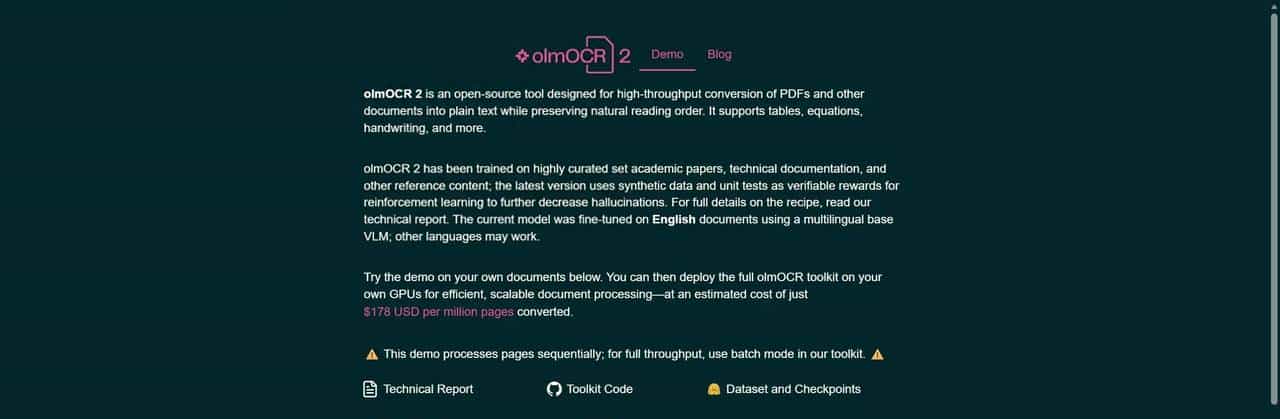
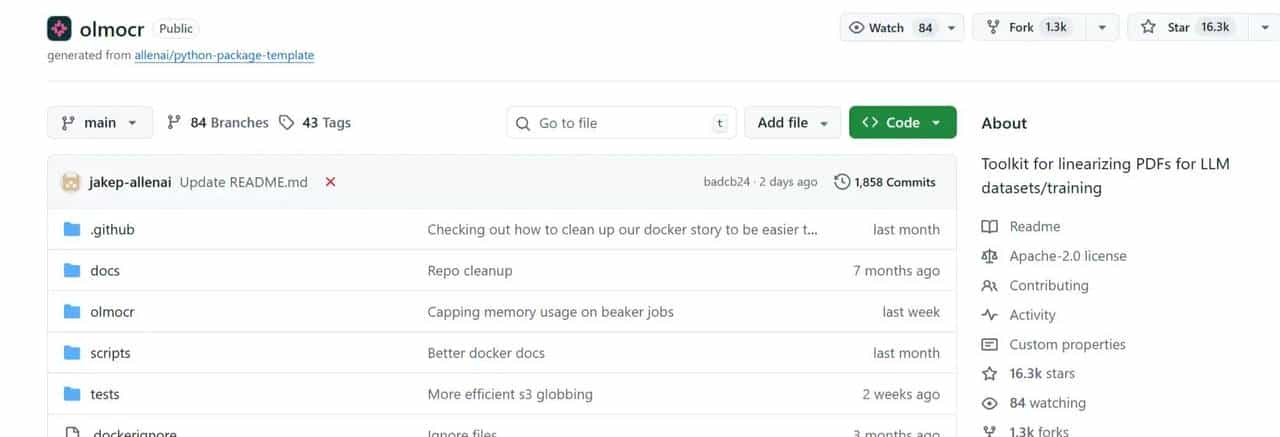
不过今年,AllenNLP 团队放出了他们家的 olmOCR,真算是原地送钱:这一套基于视觉语言模型的文档转换工具,恨不得把 PDF、图片、手写件全都化成干净的 Markdown 文本,连公式、表格、批量处理都做得特别顺滑。有点像“只要能看得见,就有办法还原出来”。关键还自产自销,源码在 GitHub 上公开,开 Apache-2.0 协议,商用也没门槛,等于给个人和公司都送了个专业级的文档小助手。别说省钱了,效率也是一大突破。
再说实战效果。新出的 olmOCR-Bench 放了七千多个测试点,涵盖了各种文档情况。官方公布的数据上,v0.1.75 版本综合拿下 75.5 分,碾压了 Marker、MinerU、Mistral OCR API 这些以前风头劲的方案。扫描件识别、复杂公式、花样表格都直接提升了好几个档,最核心的就是它优化了文本提示、温度参数,还有 vllm 推理,这一套操作下来,不光能跑得快,对一些极难搞的文档也有很强的鲁棒性。换句话说,就算你丢进来一堆旧文件,也不容易“水土不服”。
安装用起来也不复杂,只要机器有 GPU、能装 conda,跟着官方步骤把依赖和字体配好,环境激活,GPU 版本拉 PyTorch CUDA 镜像就行。日常用命令行批量丢 PDF、PNG、JPEG,处理完自动分门别类塞到指定文件夹,支持通配符批量跑好几百份文件。当年手动一个个拆分页面、复制粘贴的痛,基本告别了。
多列布局也能破解,手写体和页眉页脚都能自动处理,而且还直接出 Markdown,这点对许多需要结构化抽取的团队来说,实用性超级高。加上支持本地和服务器部署,甚至 Docker 容器也提前打包好了,没必要再琢磨买授权或者担心升级费。而且技术底层是 7B 参数的 VLM 模型,搭配 flash infer 推理,20GB 显存的卡就能扛,百万页处理成本官方测算下来不超 200 美元,企业采购跟用商业工具比简直就是割肉。
实则眼下数字化浪潮推着各行各业升级,光有海量 PDF 不是本事,怎么把里面的内容有效整出来,变成可二次利用的知识,才是核心。olmOCR 这套方案,算是替大家扫清了最大难题。不管你是高校里做论文检索,还是企业批量看合同,还是开发者喂数据给模型,真正实用的也许不是“多识别几个字”,而是大规模场景下的效率和精准度。对比下来,何止是科研圈,整个数字文档处理都要被重新洗牌了。
需求有多大,痛点有多强,方案就能火得多厉害。谁都想要一个一劳永逸的文档处理工具,但现实往往不是一锤定音。olmOCR迎合的不只是技术极客,还有那些每天被文档困住的普通人。未来数字化升级继续加速,谁先把“数据解锁”这件事做得又稳又广泛,谁就等着领风头。
© 版权声明
文章版权归作者所有,未经允许请勿转载。
相关文章







有时候幻觉比较严重,另一个就是转出来的.md里没有图片,感觉那个图片的坐标也是错的,并且没有标注页码……