

Lapce 是一款国产开源的现代化代码编辑器,基于 Rust 开发,具有 极高性能、丰富插件体系、跨平台支持(Windows、Linux、macOS) 等特点。本文将介绍如何在 Lapce 环境中搭建完整的软件开发环境,并给出实际落地的操作步骤。
一、Lapce 简介
- 语言内核:Rust 编写,性能接近原生 IDE。
- 功能特点:支持 LSP(语言服务器协议)、插件扩展、内置终端、Git 集成。
- 适用人群:适用于 Web、后端、系统编程等开发人员。
二、安装 Lapce
1. Windows 平台
# 方式1:直接下载安装包
https://lapce.dev/releases
# 方式2:通过 Scoop 安装
scoop bucket add extras
scoop install lapce
2. Linux 平台
# Ubuntu / Debian
sudo apt update
sudo apt install lapce -y
# 或者使用 AppImage
wget https://github.com/lapce/lapce/releases/download/v0.3.1/Lapce-x86_64.AppImage
chmod +x Lapce-x86_64.AppImage
./Lapce-x86_64.AppImage
3. macOS 平台
brew install –cask lapce
安装完成后,在桌面或终端输入 lapce 即可启动编辑器。
三、配置开发环境
1. 设置语言支持(以 Python、Rust、Go 为例)
Lapce 使用 LSP(Language Server Protocol) 来支持多语言开发。
Python 开发环境
# 安装 Python 语言服务
pip install 'python-lsp-server[all]'
Rust 开发环境
# 安装 rust-analyzer
rustup component add rust-analyzer
Go 开发环境
go install golang.org/x/tools/gopls@latest
在 Lapce 中 Preferences → Language Servers 配置对应路径,例如:
{
“languages”: {
“python”: { “language-server”: “pylsp” },
“rust”: { “language-server”: “rust-analyzer” },
“go”: { “language-server”: “gopls” }
}
}
四、插件与扩展
Lapce 支持插件扩展,进入 插件商店 (Ctrl+Shift+X),常见插件有:
- Lapce Vim:Vim 键位支持。
- Git Integration:更强劲的 Git 工具。
- Themes:更多配色方案。
- Debugger 插件(如 dap 插件):调试能力增强。
五、项目开发实战(以 Rust 项目为例)
1. 创建项目
cargo new hello_lapce
cd hello_lapce
2. 使用 Lapce 打开项目
lapce ./hello_lapce
3. 编辑代码
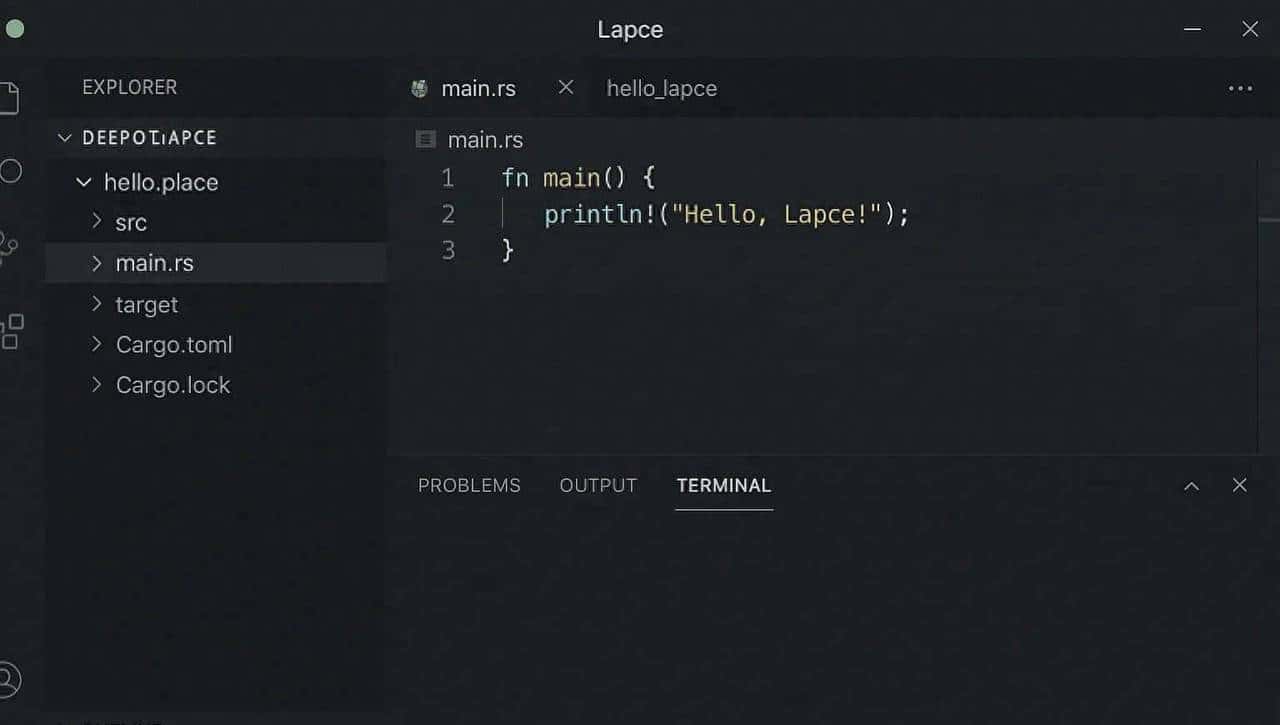
在 src/main.rs 中输入:
fn main() {
println!(“Hello, Lapce!”);
}
4. 编译运行
Lapce 内置终端,直接输入:
cargo run
输出:
Hello, Lapce!
六、Git 版本管理
Lapce 自带 Git 集成:
- 打开左侧 源代码管理 (Ctrl+Shift+G)
- 查看变更文件
- 输入提交信息,点击提交
- 执行 git push 推送到远程仓库
七、调试与运行
Lapce 通过插件支持调试功能,例如 CodeLLDB 插件。
- 安装插件
- 在项目中添加 .vscode/launch.json 配置调试参数
- 按下 F5 启动调试
八、性能优化与个性化配置
- 快捷键:在 Preferences → Key Bindings 中自定义。
- 主题切换:选择 Dark/Light 主题或安装扩展。
- 性能优化:
- 开启 GPU 加速(默认启用)。
- 减少无用插件加载。
九、总结
Lapce 是一款 高性能、轻量级、可扩展 的现代编辑器,结合 LSP 插件体系,可以媲美 VS Code,在 国产化、跨平台、自主可控 的环境下具有很强的优势。
通过本文步骤,读者可以:
- 安装并启动 Lapce。
- 配置 Python、Rust、Go 等语言环境。
- 使用 Git、插件、调试功能完成完整开发流程。
它既适合个人开发者,也适合企业 DevOps 团队推广使用。













暂无评论内容